
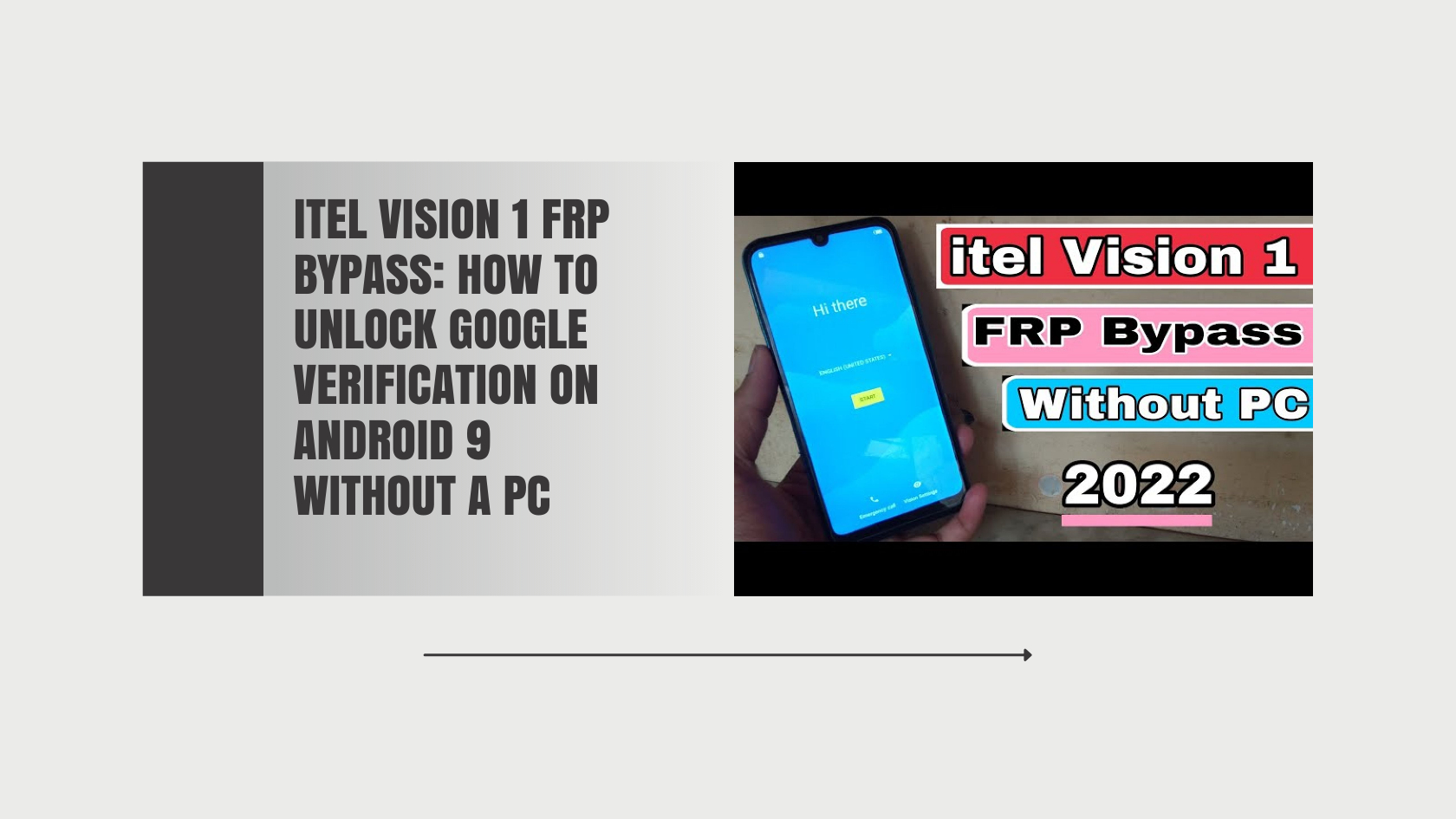
Android’s Factory Reset Protection (FRP) is a vital security feature designed to safeguard your device and data in case of theft or unauthorized access. While it’s a highly effective tool for protecting user privacy, it can sometimes become an obstacle if you forget your Google credentials after a factory reset. This can lock you out of your Itel Vision 1 running Android 9.
Thankfully, there are methods to bypass FRP without needing a PC, and this blog will guide you through them step-by-step. We’ll also discuss the risks, legal considerations, and best practices for securing your device. With these insights, you’ll be able to safely regain access to your phone.
What Is FRP and Why Does It Matter?
Factory Reset Protection (FRP) is an Android security protocol introduced by Google. It automatically activates when you set up your Google account on a device. FRP ensures that even if someone resets your phone to factory settings, they won’t be able to access it without the associated Google account credentials.
Why You May Need to Bypass FRP
While FRP is a robust security measure, it can cause problems:
- Forgotten Google Account Credentials: When users forget their login ID or password, they may need to bypass FRP to regain device access.
- Buying/Selling Used Devices: Second-hand devices may still be linked to the previous owner’s Google account, triggering FRP during a reset.
If you’re stuck in such a situation with your Itel Vision 1, several solutions can help you get past Google account verification.
Step-by-Step Methods for Itel Vision 1 FRP Bypass on Android 9 Without a PC

Method 1: Using a Non-Activated SIM Card
This method exploits the device’s emergency dialer to bypass FRP.
- Power on your Itel Vision 1 and connect it to Wi-Fi.
- At the Google Account Verification screen, insert a non-activated SIM card into the phone.
- Wait a few moments, then tap on the “Emergency Call” option.
- On the emergency dialer keypad, enter this code: `##4636##` and press enter.
- Select “Usage Statistics” from the menu that appears.
- Use the back button to exit, which will redirect you to the Settings menu.
- From Settings, reset your phone to factory settings. This should remove the FRP lock.
Note: Use caution when bypassing FRP, and ensure you have proper authorization.
Method 2: Accessing Google’s Settings Services
Here’s how to use the built-in Google features to bypass FRP:
- On the Google Account Verification screen, type random text in the Email or Phone field.
- Long-press the text to highlight it, then tap Share from the options menu.
- Select Gmail from the sharing options. This will lead you to the App Info page.
- Tap “App Info” > Enable Settings > Open Settings.
- From the Settings menu, select Users & Accounts and either add a new account or skip the step to gain full access.
This method allows you to use built-in settings without the need for external tools.
Method 3: Applying a Custom Launcher
Custom launchers redirect the user to settings, where FRP protection can be bypassed.
- Connect your Itel Vision 1 to Wi-Fi and proceed to the Google Account Verification screen.
- Tap the text input field to open the keyboard. Select the gear icon to access keyboard settings.
- Navigate to Gboard Settings > Text Correction > Personal Dictionary > English.
- Add a new word to the dictionary and long-press it. Select the Search icon that appears.
- The search will open a browser. Download and install “Test DPC 3.0.6 APK.”
- Launch the Test DPC app and set it up as the device owner. This will redirect you to settings, where you can reset the device, bypassing FRP in the process.
Pro Tip: Be cautious about the sources you download apps from to avoid malware.
Method 4: Using a Professional FRP Bypass Tool
A professional tool can make the process seamless, but this typically requires a PC. However, for completeness:
- Download a reputable FRP Bypass Tool, such as Tenorshare 4uKey.
- Connect your Itel Vision 1 to your PC via a USB cable.
- Follow the tool’s on-screen instructions to remove the FRP lock.
While this entails using a PC, it’s the most reliable option if other methods fail.
Risks and Legal Considerations of FRP Bypass
While these methods can help you regain access to your device, it’s essential to be mindful of the following:
- Risks: Bypassing FRP without proper knowledge can harm your device, expose it to security vulnerabilities, or lead to software instability.
- Legal Implications: Bypassing FRP on a device you do not own is illegal. Always ensure you have proper consent or ownership before attempting a bypass.
Always exercise caution and understand the implications of circumventing security measures like FRP.
Protect Your Device and Account
To avoid getting locked out of your device in the future, follow these tips:
- Keep Track of Your Google Account Credentials: Use a secure password manager to store your login details.
- Log Out Before Selling Your Device: Remove your Google account from the device to deactivate FRP.
- Secure Your Device: Use strong passwords or biometric authentication for added security.
- Set Up Backup Options: Avoid lockouts by enabling account recovery options like recovery email or phone numbers.
Implementing these best practices ensures your device and data remain safe.
Final Thoughts on FRP Bypass
FRP is an essential feature to protect your Android device from unauthorized access. However, getting locked out can be frustrating if you forget your credentials. With the methods provided above, you can regain access to your Itel Vision 1 without the need for a PC. Remember to proceed responsibly and only use these techniques on devices you own or have proper authorization to access.
Have you tried any of these methods yet? Share your experience or get help with additional questions in the comments below.