
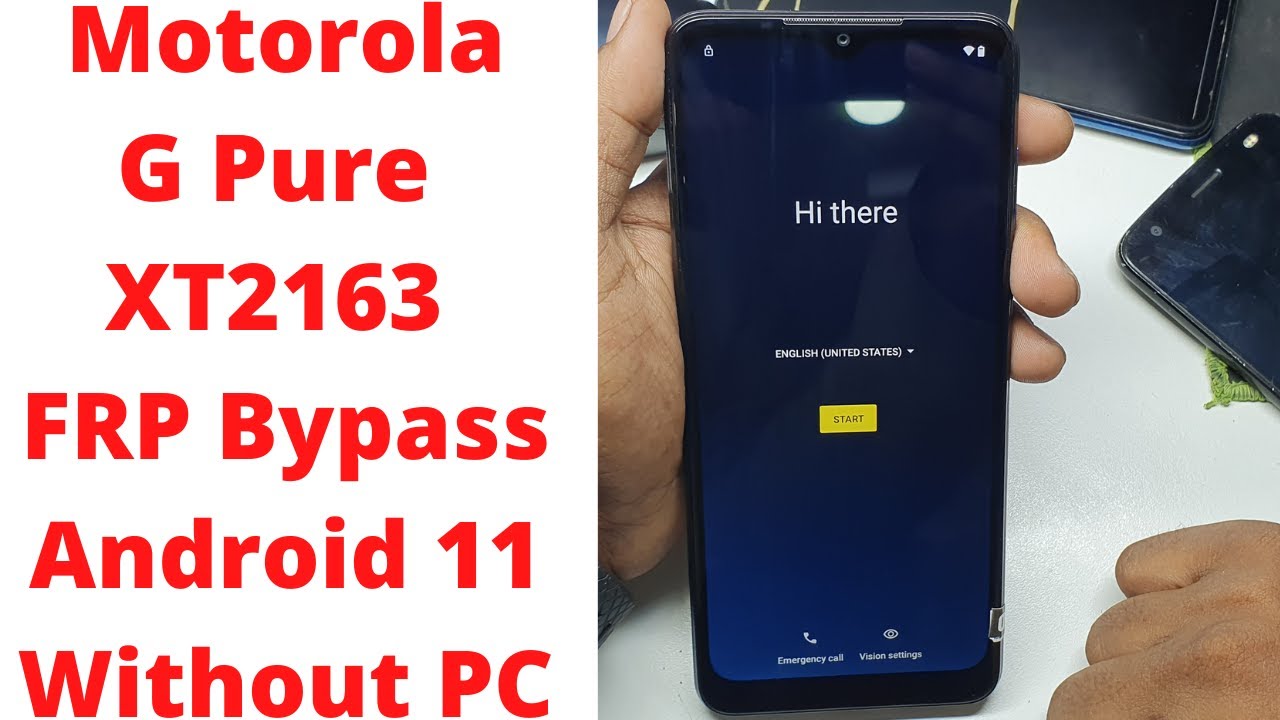
To bypass FRP on a Motorola G Pure, use a reliable FRP bypass tool or contact a professional. Ensure you follow legal procedures.
How to Bypass FRP on Motorola G Pure. Factory Reset Protection (FRP) is a security feature on Android devices, including the Motorola G Pure, to protect user data. It activates when a device is reset without the owner’s permission, requiring the original Google account credentials to unlock. This feature helps prevent unauthorized access and theft.
Bypassing FRP can be challenging and should be done responsibly. Using reliable FRP bypass tools or seeking professional help is essential. Always ensure the methods used are legal and safe to avoid potential issues. Understanding FRP and its implications can help users navigate this security measure effectively.
Preparation
Before attempting to bypass FRP (Factory Reset Protection) on your Motorola G Pure, it’s crucial to prepare adequately. Proper preparation ensures the process goes smoothly and minimizes risks. This section covers the essential steps to get ready.
Necessary Tools
To bypass FRP on a Motorola G Pure, you need specific tools. Below is a list of the essential items:
- A USB cable is compatible with your Motorola G Pure.
- A Windows PC or laptop.
- Motorola USB drivers are installed on your PC.
- The FRP bypass software is specific to Motorola devices.
- A reliable internet connection.
Ensure all these tools are ready before you start the bypass process.
Backup Data
Backing up your data is a crucial step. This ensures you don’t lose important information. Follow these steps to back up your data:
- Go to your phone settings.
- Navigate to System and then Backup.
- Enable Backup to Google Drive.
- Wait for the backup to complete.
It’s always a good idea to double-check that your data is safely backed up.
Now that you have the necessary tools and your data is backed up, you’re ready to proceed with the FRP bypass. Stay tuned for the next section where we cover the detailed steps.
Credit: www.techeligible.com
Entering Recovery Mode
Entering Recovery Mode on your Motorola G Pure can be crucial. This mode helps you reset your device or update the software. Follow these steps to enter Recovery Mode safely.
Power Off Device
First, you need to power off your Motorola G Pure. Press and hold the power button for a few seconds. A menu will appear on the screen. Select the “Power off” option. Wait until the device completely shuts down.
Boot Into Recovery
Next, you need to boot into Recovery Mode. Follow these steps:
- Press and hold the Volume Down button.
- While holding Volume Down, press and hold the Power button.
- Keep holding both buttons until the boot menu appears.
- Use the Volume Down button to navigate to “Recovery Mode”.
- Press the Power button to select it.
Your device will now enter Recovery Mode. You will see an Android robot with a red exclamation mark. Press and hold the Power button, then press Volume Up once. You should now see the Recovery Mode menu.
In Recovery Mode, you can perform various actions such as factory resetting your device or installing updates. Use the Volume buttons to navigate and the Power button to select an option.
Factory Reset
Factory Reset is a crucial step to bypass FRP on Motorola G Pure. It helps to remove all data and settings, giving you a fresh start. Follow these steps carefully to perform a factory reset.
Navigate Recovery Options
First, turn off your Motorola G Pure. Press and hold the Volume Down button and Power button simultaneously. Release both buttons when the Fastboot Mode screen appears.
Use the Volume Down button to navigate to Recovery Mode. Press the Power button to select it. Your phone will reboot and show an Android logo with a red exclamation mark.
Press and hold the Power button. While holding it, press and release the Volume Up button. You will now see the Recovery Menu.
Perform Factory Reset
In the Recovery Menu, use the Volume Down button to navigate to Wipe data/factory reset. Press the Power button to select it.
Navigate to Yes using the Volume Down button and confirm with the Power button. The factory reset process will start. It may take a few minutes to complete.
Once the reset is finished, navigate to Reboot System Now and press the Power button. Your Motorola G Pure will restart, and the FRP should be bypassed.
Using the FRP Bypass Tool
Bypassing the Factory Reset Protection (FRP) on your Motorola G Pure can seem daunting. Using an FRP Bypass Tool simplifies this task. Follow this guide to unlock your device safely.
Download And Install Tool
First, you need to download the FRP Bypass Tool. Visit a trusted website to get the tool. Ensure your PC has enough space for the download.
Once downloaded, locate the file in your downloads folder. Double-click to start the installation process. Follow the on-screen instructions. Agree to the terms and conditions. Click ‘Next’ to proceed.
After installation, launch the tool to ensure it works correctly. You are now ready to connect your Motorola G Pure.
Connect Device To Pc
Use a USB cable to connect your Motorola G Pure to your PC. Make sure the connection is secure. Your device should be in Download Mode.
To enter Download Mode, power off your device first. Then, press and hold the Volume Down and Power buttons simultaneously. Release them when the Download Mode screen appears.
Once connected, your PC should recognize the device. The FRP Bypass Tool will detect your Motorola G Pure. Follow the on-screen prompts to bypass the FRP lock.
Wait for the process to complete. Your device will restart automatically. You should now have access to your Motorola G Pure without any FRP lock.
Running The Bypass Process
In this section, you will learn how to bypass FRP on your Motorola G Pure. This process involves using specialized tools and following specific instructions. Let’s get started!
Launch Tool
First, you need to launch the bypass tool. Download the tool from a trusted source. Open the tool on your computer. Connect your Motorola G Pure to the computer using a USB cable.
Follow on-screen Instructions
The tool will display on-screen instructions. Carefully read each step. Follow the instructions as shown. The steps may include entering specific codes or performing actions on your phone.
| Step | Description |
|---|---|
| 1 | Connect your phone to the computer. |
| 2 | Launch the bypass tool. |
| 3 | Follow the on-screen instructions. |
| 4 | Enter any required codes. |
| 5 | Complete the bypass process. |
Ensure you follow each step accurately. Missing a step can cause issues. Once completed, your phone will bypass the FRP lock. Your Motorola G Pure is now ready to use!
Verifying Bypass Success
After bypassing the Factory Reset Protection (FRP) on your Motorola G Pure, it’s crucial to verify the success of the bypass. This ensures your device is fully functional and no further issues remain.
Restart Device
First, restart your Motorola G Pure. Restarting the device helps to apply any changes made during the bypass process.
- Press and hold the Power button until the power menu appears.
- Select Restart and wait for the device to reboot.
Once the device restarts, proceed to check the FRP status.
Check Frp Status
After rebooting, you must check if the FRP lock is indeed bypassed.
- Go to the Settings menu.
- Scroll down and tap on Accounts.
- Ensure your Google account is added and accessible.
If your Google account is present and no FRP lock prompts appear, the bypass was successful.
For further confirmation, perform another device restart and check if any FRP lock prompts appear during the setup process. If there are no prompts, you have successfully bypassed the FRP on your Motorola G Pure.
Troubleshooting
Encountering issues while trying to bypass FRP on your Motorola G Pure? Don’t worry, you’re not alone. This section will help you troubleshoot common issues and provide additional resources to get you back on track.
Common Issues
Here are some common issues people face:
- Device not recognized: Ensure your USB cable is working and properly connected.
- Stuck on Google verification: Double-check the steps to ensure you didn’t miss anything.
- Software errors: Restart your phone and try again. Update your bypass tools.
- Incorrect credentials: Verify you have the correct Google account details.
Additional Resources
If you need more help, check out these resources:
| Resource | Description | Link |
|---|---|---|
| Motorola Support | Official support and troubleshooting steps | Visit |
| Online Forums | Community help and tips from other users | Visit |
| YouTube Tutorials | Step-by-step video guides | Visit |

Credit: www.reddit.com

Credit: m.youtube.com
Frequently Asked Questions
What Is Frp On Motorola G Pure?
FRP stands for Factory Reset Protection. It is a security feature on Motorola G Pure. It prevents unauthorized factory resets. This feature ensures that your data is safe if your device is lost or stolen.
How To Bypass Frp On Motorola G Pure?
To bypass FRP, you need specific tools and knowledge. Generally, it involves entering the device’s recovery mode. Then, follow specific steps to remove the Google account lock. Always ensure you have the proper permissions to bypass FRP.
Is Bypassing Frp On Motorola G Pure Legal?
Bypassing FRP is legal if you own the device. However, bypassing FRP on someone else’s device without permission is illegal. Always ensure you are authorized to perform such actions.
What Tools Are Needed To Bypass Frp?
You may need a computer, a USB cable, and specialized software. Software like SP Flash Tool or FRP Bypass APK can be useful. Always download tools from trusted sources to avoid malware.
Conclusion
Successfully bypassing FRP on your Motorola G Pure can be straightforward with the right steps. Following this guide ensures you regain full access to your device. Remember to back up your data regularly to avoid any issues. Stay updated with the latest methods to keep your device secure and functional.